

Key Takeaways
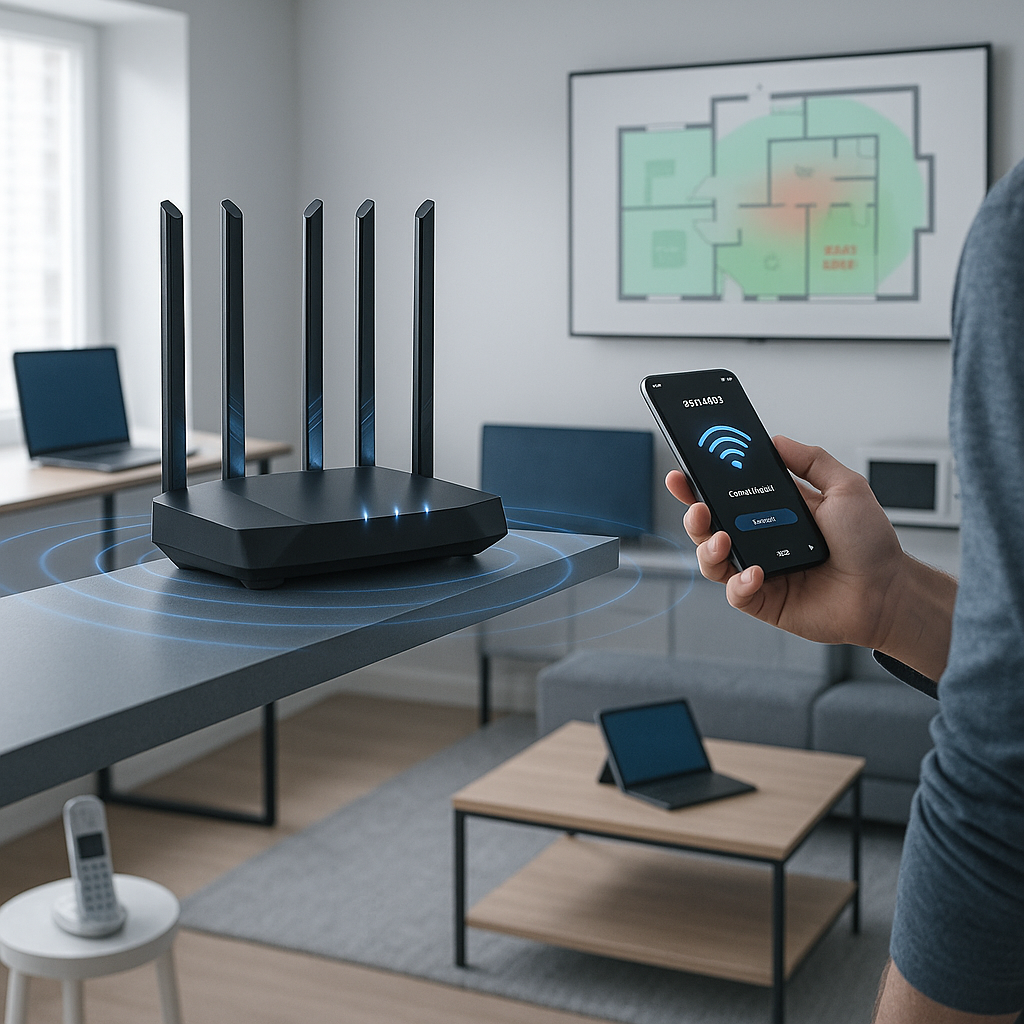
- Reposition your router for maximum coverage: Placing your router in a central, unobstructed spot increases signal strength and minimizes dead zones throughout your home.
- Choose the right frequency band for speed: Switch between 2.4GHz and 5GHz bands to find the optimal balance between range and speed, depending on your household’s layout and the needs of your devices.
- Update your router’s firmware regularly: Regular firmware updates deliver performance improvements, bug fixes, and enhanced security. All contribute to faster, more reliable Wi-Fi.
- Optimize your network by limiting device overload: Too many connected devices can clog up bandwidth. Disconnect or pause unused gadgets to lighten the load and improve speeds where it matters most.
- Reduce interference from household electronics: Keep your router away from microwaves, cordless phones, and Bluetooth devices to minimize signal disruption and maintain a stable connection.
- Secure your Wi-Fi to block freeloaders: Setting a strong password prevents unwanted devices from using your bandwidth, ensuring you receive the internet speeds you’re paying for.
- Upgrade outdated hardware for a real speed leap: Modern routers support faster, more efficient wireless standards. Upgrading your hardware can deliver an instant, noticeable Wi-Fi speed boost.
By acting on these targeted home internet tips, you can quickly address slow Wi-Fi and enjoy a smoother, faster online experience. Now, let’s explore each fix in detail to help you make the most of your home network.
Introduction
Buffering screens and laggy downloads can make even the simplest online tasks frustrating, especially when sharing Wi-Fi among family members, streaming your favorite shows, or participating in video calls for work or school. The good news is that slow internet does not have to become your new normal. Many of the root causes are easily addressed, such as optimizing your router’s placement, adjusting settings, or managing connected devices.
Achieving a real Wi-Fi speed boost is within your reach. With a few targeted home internet improvements (like repositioning your router, switching frequency bands, and keeping unauthorized users out), you can fix slow Wi-Fi without calling in a technician or investing in expensive upgrades.
Let’s break down seven practical fixes that anyone can implement, so you can finally enjoy the speed, stability, and convenience your home network is capable of delivering.
Un passo avanti. Sempre.
Unisciti al nostro canale Telegram per ricevere
aggiornamenti mirati, notizie selezionate e contenuti che fanno davvero la differenza.
Zero distrazioni, solo ciò che conta.
 Entra nel Canale
1. Strategic Router Placement
Finding the Perfect Spot
Your router’s physical location plays a crucial role in determining Wi-Fi performance. To maximize coverage and strength, place your router in a central, elevated location (ideally at chest height or higher). Avoid hiding it on the floor or behind large pieces of furniture, as obstacles can block and weaken the signal. Central placement helps ensure even distribution of the wireless signal throughout the home.
Distance and Signal Strength
Consider your Wi-Fi signal like ripples spreading across a pond. It weakens as it travels further from the router. For optimal coverage, make sure your router is:
- Within 30 feet of your most-used devices
- Away from metal surfaces, which can reflect and distort signals
- Elevated at least 5–7 feet off the ground
- Positioned clear of thick walls or concrete barriers that can obstruct signals
Avoiding Interference Sources
Many everyday items can disrupt your Wi-Fi. To maintain signal strength, keep your router at least six feet away from:
- Microwave ovens
- Cordless phones
- Bluetooth speakers or headsets
- Baby monitors
- Large metal appliances or mirrors
A thoughtful placement not only improves internet speed but also helps create a more stable connection for all devices.
2. Optimize Router Settings
Once your router has been ideally positioned, the next step is to configure its settings for optimal performance.
Selecting the Right Channel
Modern routers operate across multiple channels within the same frequency band. However, neighboring Wi-Fi networks may overlap and cause interference. Use a Wi-Fi analyzer app to detect the least congested channels in your area. For 2.4GHz networks, channels 1, 6, and 11 are typically best to reduce overlap with neighboring signals.
Band Selection Strategy
If your router supports dual-band (2.4GHz and 5GHz), use both to your advantage:
- Connect stationary or bandwidth-heavy devices (smart TVs, desktop computers) to 5GHz for faster speeds and lower latency.
- Use the 2.4GHz band for devices farther from the router, as it offers better range through walls.
- Enable band steering if your router supports this feature (it automatically places each device on its optimal band).
Quality of Service (QoS) Configuration
Quality of Service settings let you prioritize traffic for critical tasks. Properly configured QoS can:
- Give video calls priority during work or school hours
- Ensure online gaming runs smoothly even when others are streaming or downloading
- Limit bandwidth usage for less important background activities, such as system updates
Different routers offer varying QoS options, so consult your user manual or manufacturer’s website for setup guidance.
3. Regular Router Maintenance
Maintaining your router ensures it operates at peak efficiency and provides all available features.
Firmware Updates
Just as your smartphone benefits from regular updates, your router’s firmware should be kept current. Check for updates at least once per month. Updated firmware includes:
- Performance enhancements for speed and reliability
- Essential security patches
- New features that enhance usability
- Bug fixes that may resolve connectivity or speed issues
Physical Maintenance
Physical upkeep goes a long way in extending your router’s life and sustaining optimal speeds:
- Dust vents every three months to prevent overheating
- Confirm cables are securely connected each month
- Restart your router every two weeks to clear its memory and refresh connections
- Verify proper ventilation, especially if your router is near other electronics
Consistent maintenance sets the stage for a consistently strong and secure Wi-Fi experience.
4. Network Security Optimization
A secure network is not only essential for privacy and data protection but also for maintaining top speeds.
Password Protection
Implement these measures to keep your network safe without compromising speed:
- Use WPA3 encryption if available (or at minimum WPA2)
- Create a strong password combining upper- and lowercase letters, numbers, and symbols
- Change the default admin credentials to something unique
- Set up a separate guest network for visitors, keeping your main network secure
Managing Connected Devices
Regular device management ensures only trusted gadgets use your bandwidth:
Un passo avanti. Sempre.
Unisciti al nostro canale Telegram per ricevere
aggiornamenti mirati, notizie selezionate e contenuti che fanno davvero la differenza.
Zero distrazioni, solo ciò che conta.
Entra nel Canale
- Review all connected devices at least monthly via your router’s admin page or mobile app
- Remove previously connected or unknown devices
- Set device limits on guest networks to prevent abuse
- Monitor which devices use the most bandwidth, identifying possible bandwidth hogs
Securing your network keeps freeloaders at bay and ensures you get the best performance for your investment.
5. Signal Extension Solutions
Even with a strategic router setup, larger homes or buildings with many obstructions may experience dead zones. Fortunately, several solutions can help fill these gaps.
Mesh Network Setup
For comprehensive, seamless Wi-Fi in larger homes, a mesh network is highly effective:
- Distributes coverage with multiple nodes (mini-routers) throughout your space
- Eliminates dead zones by using intelligent routing
- Supports effortless roaming so your device always connects to the closest node for best performance
- Self-healing network automatically routes around node failures
Mesh systems are also gaining popularity in educational institutions, healthcare environments, and office buildings, where constant, reliable coverage is essential for daily operations.
Wi-Fi Extender Placement
If a mesh system is not feasible, traditional Wi-Fi extenders can help:
- Position extenders midway between your main router and the dead zone
- Ensure the extender receives a strong signal from the router for optimal rebroadcasting
- Configure extenders with the same network SSID for a smoother user experience
- For especially stubborn areas, use wired connections (Ethernet backhaul) for extenders to maximize performance
Choosing the right extension method depends on your home size, building materials, and budget.
6. Hardware Assessment
The capabilities and age of your hardware play a vital role in your network’s speed and resilience.
Router Capabilities
Assess your router’s specification to make sure it meets today’s demands:
- Wi-Fi 6 (802.11ax) routers provide superior speed, capacity, and security
- At minimum, use a dual-band router; for busy households, tri-band is even better
- Check the manufacturer’s listed maximum supported speeds
- Verify that your smartphones, laptops, smart displays, and IoT gadgets are compatible with your router’s latest supported wireless standard
In professional contexts, such as offices or retail spaces, ensuring modern, scalable hardware is especially critical for supporting multiple users and devices.
Upgrade Considerations
Watch for signs you need new hardware:
- Routers older than 3–4 years may struggle to keep up with modern internet speeds and device loads
- Frequent Wi-Fi disconnections, drops, or lags
- Inability to support numerous concurrent connections (a problem for smart homes and workplaces)
- Missing advanced security features, like WPA3 or reliable parental controls
Investing in the latest hardware can create an immediate, visible boost to your network speed and reliability.
7. Environment Modifications
Sometimes, physical aspects of your home or workspace create Wi-Fi challenges. Adjustments can make a larger difference than many expect.
Physical Obstacles
Reduce signal blockage and optimize paths for wireless signals by:
- Repositioning furniture that blocks the direct line of sight between the router and key devices
- Using door-mounted Wi-Fi extenders to easily bring signal into challenging rooms
- Installing additional mesh nodes in spaces blocked by fireplaces, thick walls, or appliances
- Choosing building materials and paint types that are less likely to absorb or interfere with wireless signals during renovations
This approach applies in various environments (including schools, hospitals, and offices) where reconfiguring physical layouts can quickly optimize network performance.
Signal Reflection
Enhancing signal distribution can address unexpectedly weak zones:
- Place mirrors strategically to help reflect Wi-Fi signals into dead zones
- Install Wi-Fi reflectors or parabolic antennas in challenging spots for a focused coverage boost
- Maintain a clear line of sight between the router and the most important devices whenever possible
- Avoid keeping your router near or on top of metal surfaces, as they can amplify interference
Smart environmental modifications, when combined with other strategies, provide a holistic solution to Wi-Fi slowdowns.
Conclusion
Supercharging your home Wi-Fi speed is a blend of thoughtful placement, smart configurations, vigilant maintenance, and strategic hardware upgrades. By prioritizing a central, elevated location for your router, fine-tuning its channels and frequency bands, and safeguarding your network against unwanted access, you amplify both performance and security for every device in your home or office. Consistent updates and physical upkeep keep everything running smoothly. Upgrading outdated routers or adapting your environment to suit your needs can deliver immediate performance gains.
Ultimately, the future of connectivity will favor those who proactively adapt and optimize their digital environments. As the demands on home and business networks grow (across domains like education, healthcare, remote work, and smart home automation), those who take an active approach will enjoy faster speeds, stronger security, and more productive online experiences. The real challenge isn’t just solving today’s slowdowns, but setting your home or workplace up for tomorrow’s connected world. By making these strategic tweaks now, you’re equipping yourself to thrive in a rapidly evolving digital landscape. You can be confident that your network is as ready for innovation as you are.




Leave a Reply