
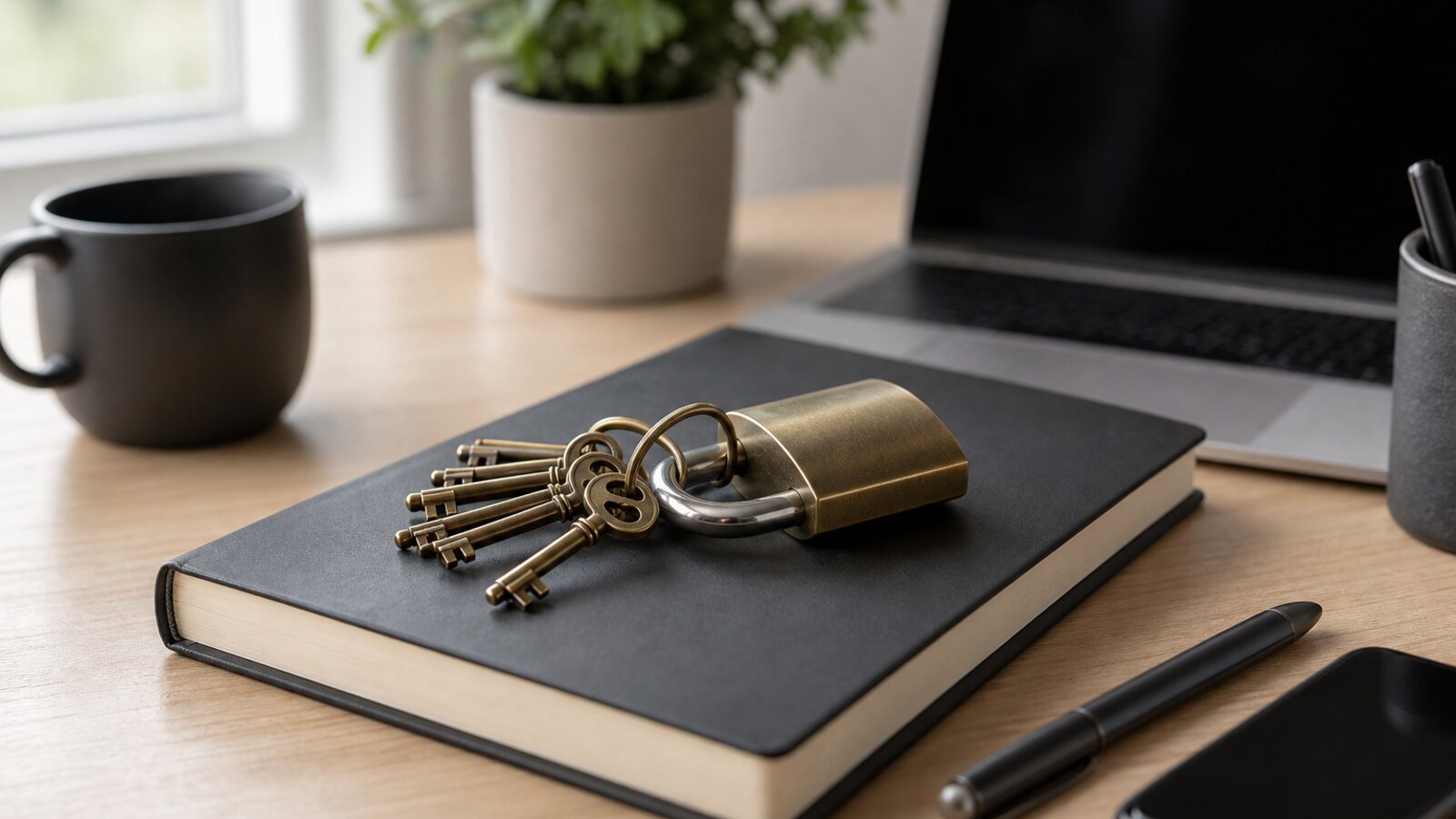

A password manager is one of the most useful security upgrades you can make: one strong master password, and a different strong password for every site. This guide gets you set up in about 30 minutes.
Step 1: Install Bitwarden (about 5 minutes)
Sign up at bitwarden.com and choose the Free plan, which is enough for most people. Then install:
– The browser extension for the browser you use every day (Chrome, Firefox, Brave, Safari or Edge)
– The mobile app for iPhone or Android
– The desktop app, if you want it (optional)
You can install Bitwarden on as many of your devices as you like; your vault syncs between them, encrypted.
Step 2: Create your master password (about 10 minutes)
This is the one password you will keep in your head from now on. Get it right.
Un passo avanti. Sempre.
Unisciti al nostro canale Telegram per ricevere
aggiornamenti mirati, notizie selezionate e contenuti che fanno davvero la differenza.
Zero distrazioni, solo ciò che conta.
 Entra nel Canale
What makes a good one:
– Long: a passphrase of several words is easier to remember than a short jumble of symbols
– Memorable to you, not guessable by others
– Never used anywhere else
A pattern that works: four or five unrelated words, plus a number and a symbol.
Example (do not use this one): CorrectHorseBatteryStaple-2026-Garlic-Sheep!
Write it on paper and keep the paper somewhere safe and private. If you lose your master password, your vault cannot be recovered: Bitwarden is designed so that it cannot read your vault either.
Step 3: Move your existing passwords (about 10 minutes)
Bitwarden can import passwords exported from your browser and from other password managers, including Chrome, Edge, Safari or Apple Passwords, LastPass, 1Password, Dashlane and KeePass.
- In your old browser or password manager, find the export passwords option. It usually saves a file (often a CSV) on your computer.
- In the Bitwarden web app, use Import data, choose the source and select the file.
- Delete the exported file right away: it contains your passwords in plain text.
- Check the imported entries for duplicates.
The exact menus change from version to version, so if you cannot find the export option, search the help pages of the tool you are leaving.
Step 4: Turn on two-step login for Bitwarden itself (about 3 minutes)
This step matters most: protect your vault with a second factor, so that a stolen master password is not enough.
In Bitwarden’s settings, open Two-step login and choose:
– An authenticator app (free): for example Aegis, Google Authenticator or Bitwarden Authenticator
– A security key (free, the strongest option): any FIDO2 key, such as a YubiKey, works on every Bitwarden plan, including Free
Avoid SMS as the second factor for your password manager: SMS codes are exposed to SIM-swap attacks.
Step 5: Try it, then clean up your browser (about 2 minutes)
Test it: log out of one website and log back in. Bitwarden should fill in your details.
Then delete the passwords saved in your browser, from the browser’s password settings. They are now in Bitwarden, encrypted, and you do not want a second, weaker copy around.
Using it every day
From now on:
– New account: let Bitwarden generate a long random password on the signup form
– Existing account: let Bitwarden fill in your login
– On the move: your phone app unlocks with your master password, or with your phone’s biometrics if you turn that on
– Lost device: nobody can open your vault without your master password, and your second factor where it is required
What comes next
- Check for breached passwords: Bitwarden’s data breach report is free on every plan. The full vault health reports, which flag weak and reused passwords, are a Premium feature. You can also check your email address on haveibeenpwned.com.
- Replace weak passwords a few at a time over the next weeks; trying to do them all in one weekend is a good way to give up.
- Set up emergency access (Premium) if you want a trusted person to be able to request access to your vault if something happens to you.
Bottom line
About 30 minutes today gives you a habit that protects every account you have. It is one of the best uses of half an hour you will find. Do not put it off.
Sources
- Bitwarden, “FIDO2 WebAuthn 2FA now in all Bitwarden plans including free”: https://bitwarden.com/blog/fido2-webauthn-2fa-in-all-bitwarden-plans/
- Bitwarden Premium price change ($19.80 a year), reported by Thurrott: https://www.thurrott.com/cloud/332249/bitwarden-enhances-premium-plan-doubles-price
- Bitwarden, personal plans: https://bitwarden.com/products/personal/
- 1Password price change of March 2026, reported by MacRumors: https://www.macrumors.com/2026/02/24/1password-march-price-increase/
- BleepingComputer, “Cryptocurrency theft attacks traced to 2022 LastPass breach”: https://www.bleepingcomputer.com/news/security/cryptocurrency-theft-attacks-traced-to-2022-lastpass-breach/
Frequently asked questions
Why Bitwarden rather than 1Password?
Both work well. Bitwarden's free plan covers what most people need, its code is open source, and Premium costs $19.80 a year since January 2026. 1Password has no free plan: the individual plan costs $47.88 a year since March 2026. A sensible path: start with Bitwarden Free and upgrade only if you need a Premium feature.
What master password should I create?
A long passphrase you will never forget, for example four or five random words plus a number and a symbol. Write it on paper and keep it somewhere safe and private. If you forget it, your vault cannot be recovered: that is how the encryption is designed.
Should I trust a cloud password manager?
Bitwarden is designed so that your vault is encrypted on your device before it is uploaded, and your master password is not sent to Bitwarden. A stolen copy of the server data would show attackers encrypted vaults, which is why a strong master password matters so much: the 2022 LastPass breach showed that stolen encrypted vaults can be attacked offline for years when the master password is weak. If you want full control, you can also host your own compatible server (Vaultwarden is a popular unofficial option).
Un passo avanti. Sempre.
Unisciti al nostro canale Telegram per ricevere
aggiornamenti mirati, notizie selezionate e contenuti che fanno davvero la differenza.
Zero distrazioni, solo ciò che conta.
Entra nel Canale

Leave a Reply